
Before getting started, it’s essential to get in touch with our partner Otonom Solution. This first step will enable you to find out in detail the rates applied according to your specific needs and the type of service envisaged.
Otonom Solution will provide you with an alphanumeric series for each bank account, which must be entered into The Real Estate Manager at the corresponding bank accounts. It will also provide you with the “Supplier_Organization Number”.
If this is your first time making pre-authorized payments, start the procedure at step 1.
If you already use the pre-authorized payment option but wish to use Otonom Solution’s services, follow steps 1-2, 7-8 and continue with step 18.
- To activate the Otonom Solution partner, go to the top right-hand corner of your screen and click on the 3 lines, then click on “Integrations”.

2. You will be redirected to our partners window. Find Otonom Solution and check the “Activated” box.

At the top of the screen you’ll see confirmation that the partner has been activated.

3. Go to the “Real Estate Park” tab and the “Companies” sub-tab.
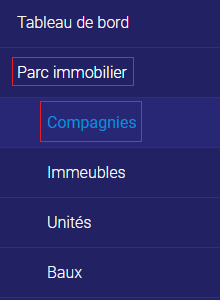
4. Click on the company you wish to modify (the one that pays suppliers).
5. Click on “Edit” in the top right-hand corner.

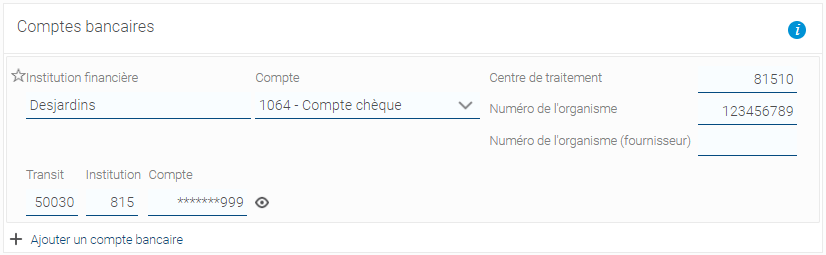
6. On the second page of the dialog window, in the “Bank account” section, enter the name of the company’s financial institution, its transit number, institution number, account number, processing center number and organization (supplier) number, and select the account from the chart of accounts. (To find out the processing center number and organization number, please contact Otonom Solution).
Note: Here are the processing center numbers for the most popular financial institutions in Quebec.
- Desjardins: 81510
- Bank of Montreal (BMO): 00110
- Royal Bank (RBC): 00210
- National Bank : (BNC) 00310
- Laurentian Bank: 03910
- TD Bank : 00420
- Banque Scotia : 00220
- HSBC : 01600
- CIBC : 01000
- ATB : 21990
7. Click on the “+” option.

8. In the “Otonom Solution account” section, insert the alphanumeric sequence given by Otonom Solution.

9. Go to the “Contacts” tab and the “Suppliers” sub-tab.
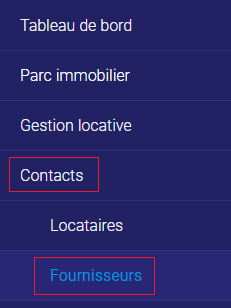
10. Click on the supplier you wish to modify (the one who will receive the payment).
11. Click on “Edit” in the top right-hand corner.

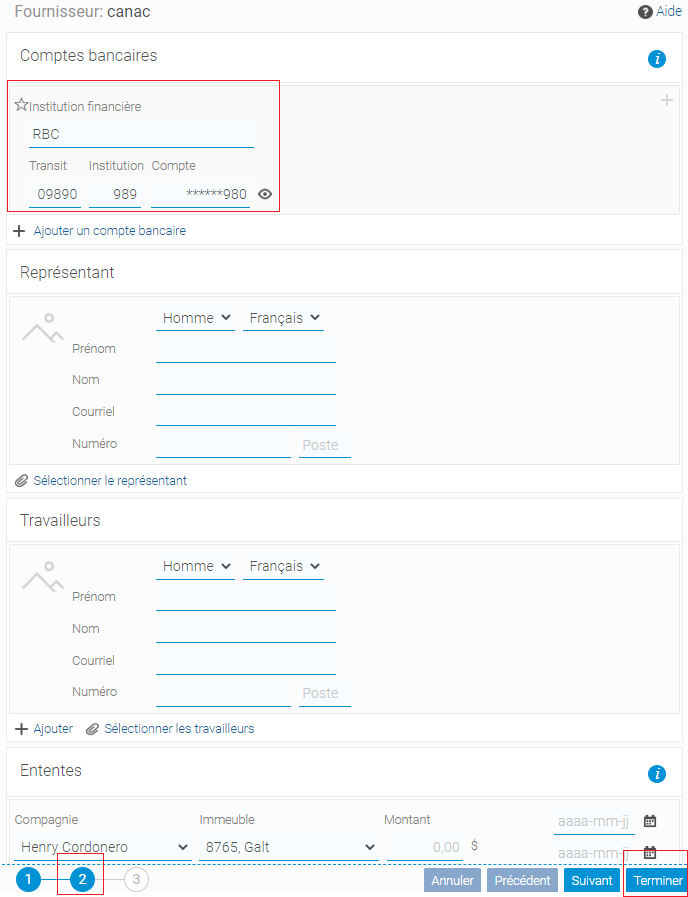
12. On the second page of the dialog window, in the “Bank account” section, enter the supplier’s financial institution name, transit number, institution number and account number, and click “Finish”.
13. To create an expense, click on “Add an expense” in the top right-hand corner of the supplier file.

14. Select the entity assigned to the expense and the chart of accounts, describe the expense and enter the amount.
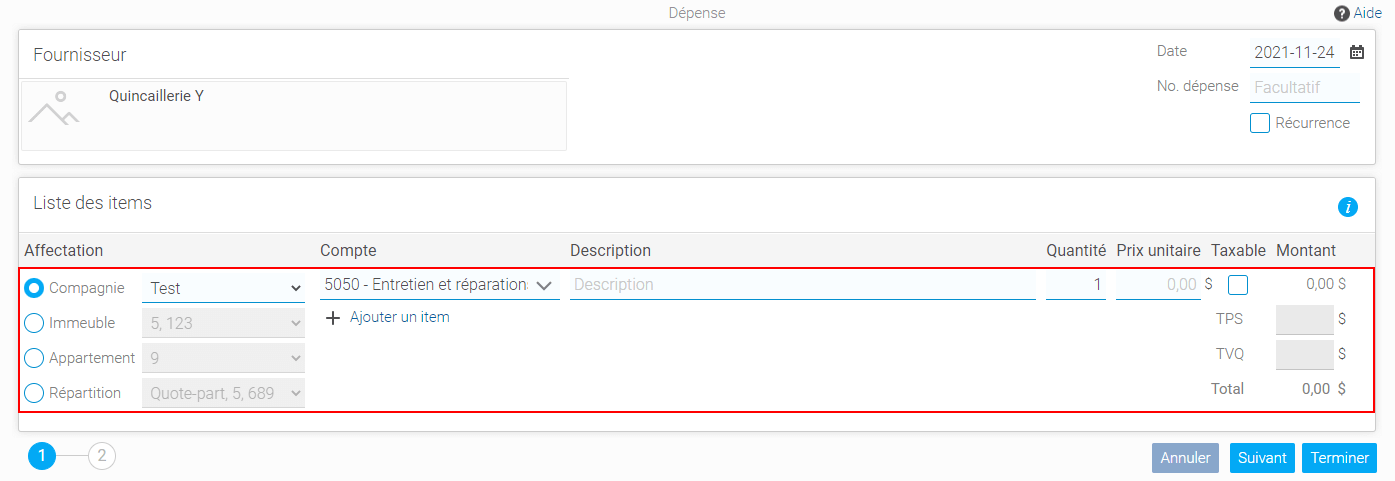
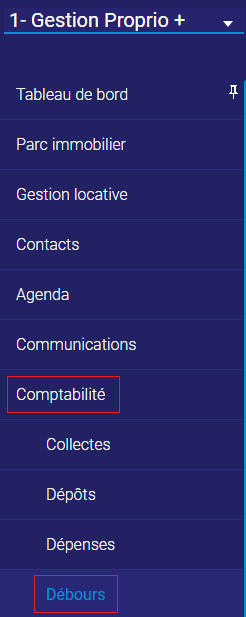
15. Click on “Finish” and go to the ‘Accounting’ tab and the “Disbursements” sub-tab.

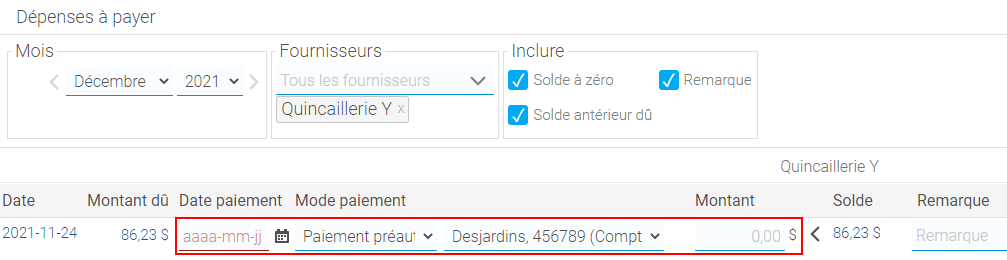
16. Find the expense and enter the payment date, the payment method (Pre-authorized payment), the account from which the amount is taken and the amount.
17. Still on the “Accounting” tab and the ‘Disbursements’ sub-tab, at top right click on the “Pre-authorized withdrawal” button and then click on the “Add” button at top right.


18. Select the expense paid by pre-authorized withdrawal.

19. Select the bank account from which payment is to be made and click on “Transmit”.

20. You will get the following warning message, click on “yes”.

21. Finally, you’ll get a confirmation message that the transmission was successful.